How We Made the IKA LAB Wallpaper Maker
The IKA LAB website has a page where you can make a wallpaper packed with squids and save it right away. This time, we're writing about how the IKA LAB Wallpaper Maker works, plus a few tips for using it.
"IKA LAB wallpapers, free to download!"
The wallpaper page was one of the pages we decided from the start that the website must have. You can choose a phone or computer size, change the layout, and save it when you like it. That was the plan from day one.
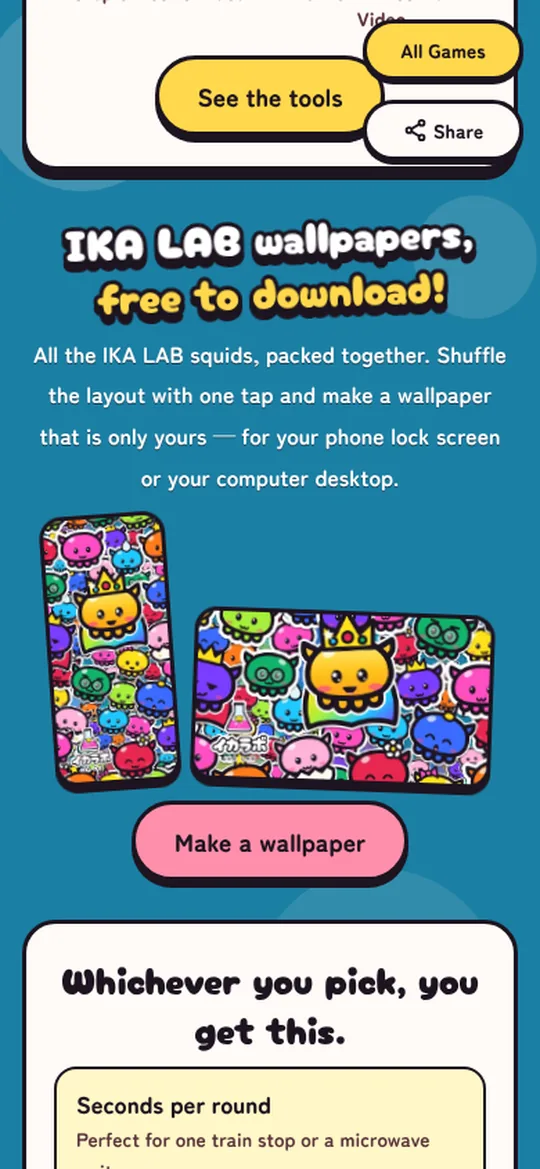
On the top page, below the game list, there's a section that says "IKA LAB wallpapers, free to download!" It shows sample pictures for phone and computer, and tapping a picture or the pink "Make a wallpaper" button takes you to the wallpaper page. You can also get there from the link at the very bottom of each page on the site.
The page comes in four languages: Japanese, English, Spanish and Portuguese. In English, the address is /en/wallpaper/. If you open /wallpaper/ without a language, it automatically sends you to the page that matches the language you chose before or your browser's language.
The King Squid in the middle, with everyone gathered around
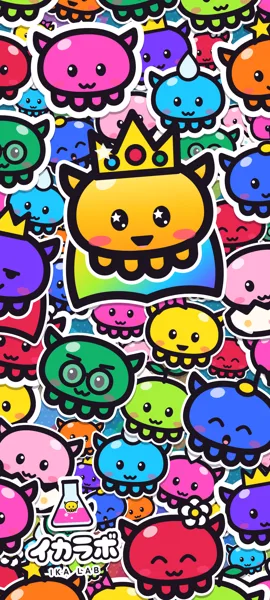
There are 21 kinds of squids in the wallpaper: the pink Chibi Squid, the nine colored squids from IKATRIO, and the eleven stages of squids from IKA MERGE. Each IKATRIO squid carries an item that goes with its color: a crown, ribbon, glasses, sprout, star, drop, heart, flower or music note.
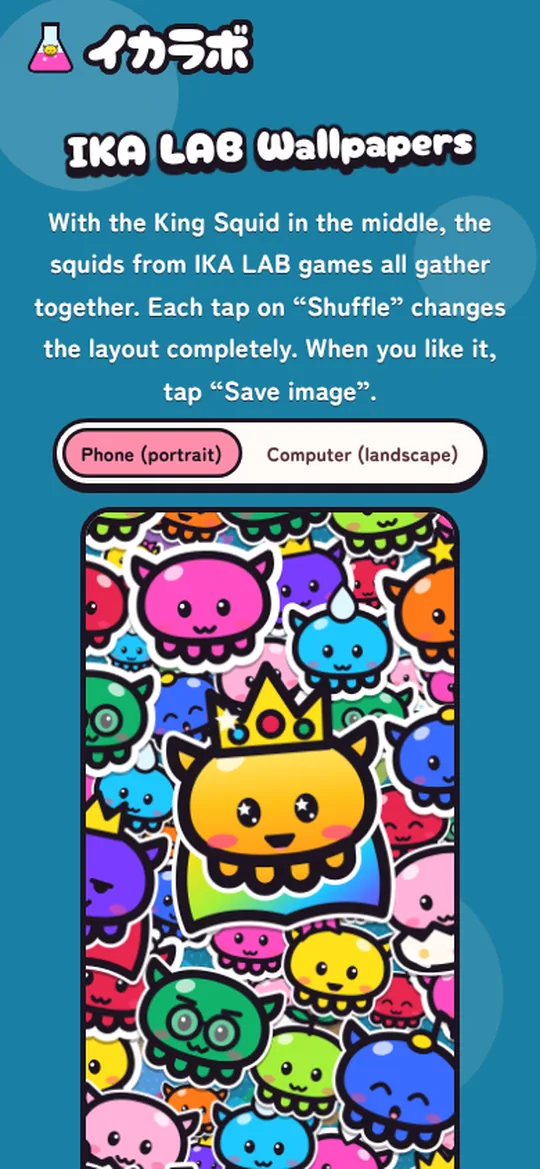
The IKA MERGE squids include the Baby Squid peeking out of an eggshell, the Prince Squid wearing a cape, and the King Squid with a golden body, a big crown and a rainbow cape. Only the IKA MERGE squids have a slightly thinner white outline. The Prince Squid has narrowed eyes and a smirk, while the King Squid has sparkly eyes and a big smile, with cheeks that are bigger and deeper in color than the other squids'.
These squids don't come from image files. They're drawn by combining shapes for the body, eyes, mouth and items in code. The face positions follow the same rules as IKA LAB's chibi squid.
Arranging the squids so they overlap as little as possible
The star is the King Squid. It's always placed biggest of all, a little above the center of the screen.
Next, spots are chosen for the squids from biggest to smallest. For each squid, many spots are tried, and the one that overlaps least with the other squids wins. It also tries to avoid spots right next to a squid of the same color, and the spot for the logo in the lower left.
Once the big squids are in place, the gaps are filled with slightly smaller squids, and any gaps still left are filled with even smaller ones. This way, the squids are arranged to fill the screen as fully as possible.
When drawing, the small squids go first and the big squids are layered on top. Each squid is tilted a little, some are flipped left to right, and each one gets a shadow underneath. The Prince Squid and King Squid are never flipped, though. The tilt is only slight in either direction, and about one squid in three is flipped.
Phone and computer sizes, the sea background and the logo
You can choose between two sizes. "Phone (portrait)" is 1080 wide by 2400 tall, and "Computer (landscape)" is 1920 wide by 1080 tall. The size of the squids and the logo is based on the length of the screen's shorter side.
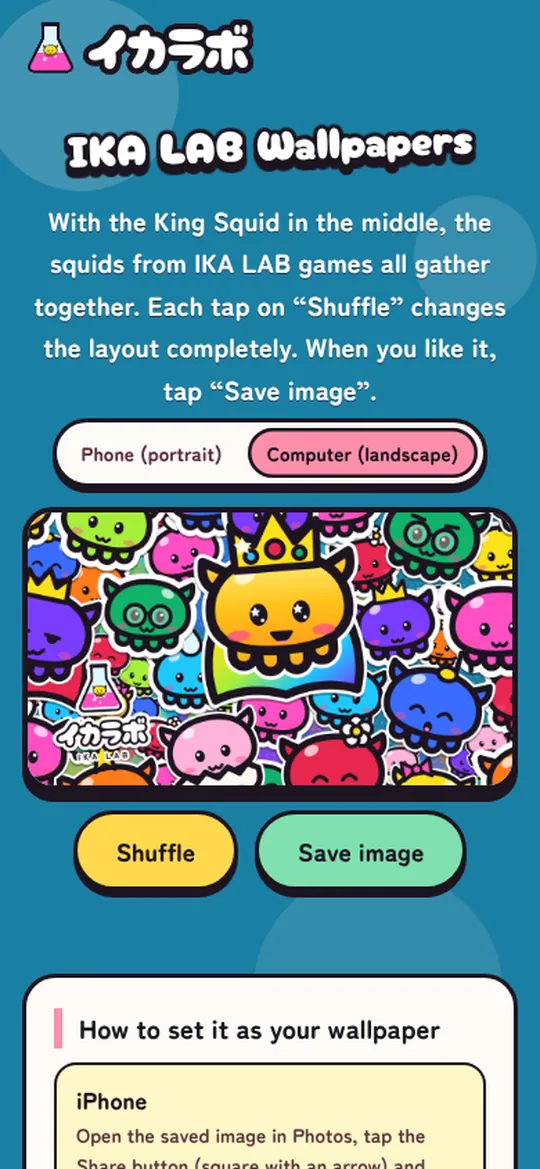
The background is the same sea blue as IKA LAB's games. On top of it, ink splashes in nine colors are spread out lightly, with rows of white polka dots. Small droplets are scattered around each ink splash, too.
The logo sits in the lower left: a flask with a yellow chibi squid inside, plus the words "イカラボ" and "IKA LAB." It's shaped like a sticker with a white outline, tilted a little, and placed on top of the squids.
The logo uses the same fonts as the website. So the drawing waits until the fonts have arrived before it starts.
"Shuffle" and never leaving you with an empty screen
When you tap "Shuffle," the number the layout is built from (the seed) changes, and so do the squids' spots, their tilt and where the ink splashes go. The same seed always gives the same layout, so the page always starts with the same layout when you open it.
Each time you tap, the wallpaper is built on the spot inside your browser. While it's being built, the page shows "Arranging the squids… Please wait a moment." Even if you tap again while it's building, it won't build two at the same time. Switching between "Phone (portrait)" and "Computer (landscape)" rebuilds it the same way.
In the past, nothing appeared for about 10 seconds after opening the page until the wallpaper was ready. On top of that, the screen jumped when the wallpaper appeared.
So we fixed it on October 8, 2026. Now a sample picture shows first when you open the page, and it's swapped out once the built wallpaper is ready. The swap only happens after the new picture is completely ready, so the picture frame doesn't suddenly change size and make the screen jump.
Saving it and setting it as your wallpaper
When a layout you like comes up, tap "Save image." It's saved as a PNG image, named ikalab_wallpaper_phone.png for the phone size and ikalab_wallpaper_pc.png for the computer size. The saved image is the same wallpaper shown on the screen.
When you tap "Save image," the message "If saving doesn’t work, long-press the image (right-click on a computer) to save it" appears. It's there for times when the button can't save the image.
Further down the page is "How to set it as your wallpaper," with steps for turning the saved image into your wallpaper on phones and on computers.
As "About using these wallpapers" says, you are free to use these wallpapers on your own phone or computer. Please don't sell them or hand them out on other websites.
Here's a quick summary of how to use it.
- Choose "Phone (portrait)" or "Computer (landscape)"
- Tap "Shuffle" until you get a layout you like
- Tap "Save image"
- Follow "How to set it as your wallpaper" to set it