Add to Home Screen and How Your Progress Is Saved
IKA LAB's web games have no accounts, yet you can pick up where you left off the next time you open them. This time, we're writing about where that progress is kept, and what the Add to Home Screen button on the title screen is for.
Progress lives inside your browser
IKA LAB's web games have no accounts or logins. Your progress, such as how far you've gotten, is kept in a storage space inside the browser you're playing in (localStorage). Each game keeps its progress separately, so one game's progress never gets mixed up with another's.
The good part is that you can jump right back in without typing a name or an email address. The trade-off is that your progress exists only inside that browser.
Because of that, your progress may not show up, or may be erased, in cases like these:
- When you play on a different phone or computer (progress doesn't carry over)
- When you open the game in a different browser, even on the same device
- When you clear the site's data in your browser settings
- When you play in private (incognito) mode or another mode that doesn't keep data
The Add to Home Screen button on the title screen
Each game's title screen has a mint-green button for adding the game to your Home Screen. Next to its label is the King Ika icon: a yellow chibi squid wearing a crown.
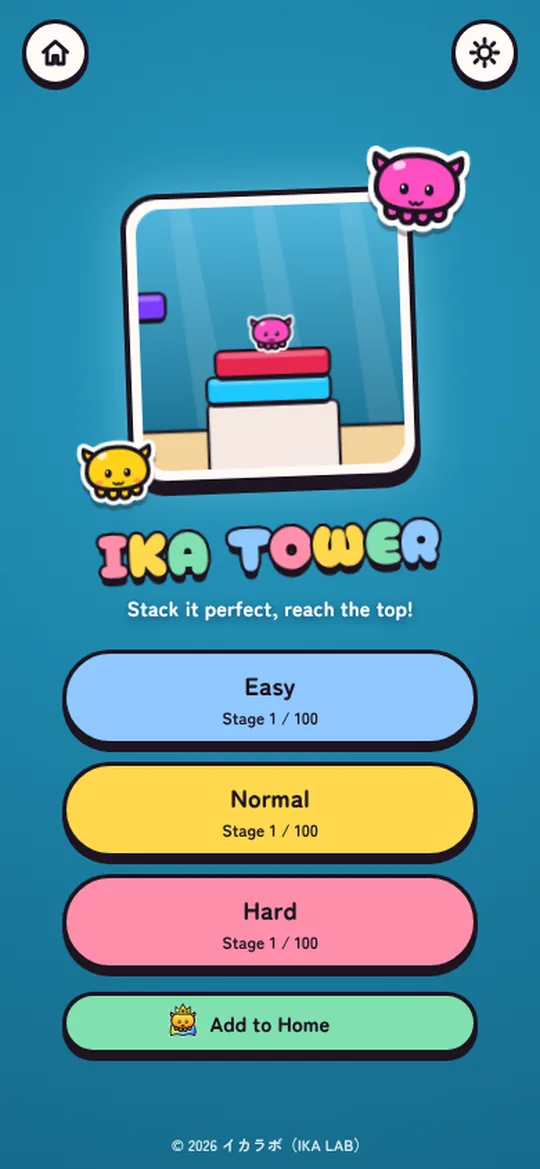
With this button, you can put the game on your phone's Home Screen as an icon. Doing that has a few benefits:
- You can start playing with one tap on the icon
- You can play full screen, with no address bar
- Your progress is less likely to be erased (especially on iPhone)
It works differently on iPhone and Android
The way you add something to your Home Screen depends on your phone, so the button behaves differently on each.
On Android, tapping the button brings up a confirmation screen asking whether to add the game. However, this screen can only appear once the browser, such as Chrome, is ready. If it isn't ready yet, we show “Getting ready…” and wait for up to 3 seconds.
If it becomes ready while you wait, an “All set!” card appears, so tap “Add to Home Screen” once more. We do this because phones only allow the confirmation screen right after a tap. If it still isn't ready after 3 seconds, or if the confirmation screen can't be shown, we show a guide telling you to open the browser menu (⋮ at the top right) and tap “Install app” or “Add to Home screen”. On Android, this works the same way in every game, using one shared piece of code.
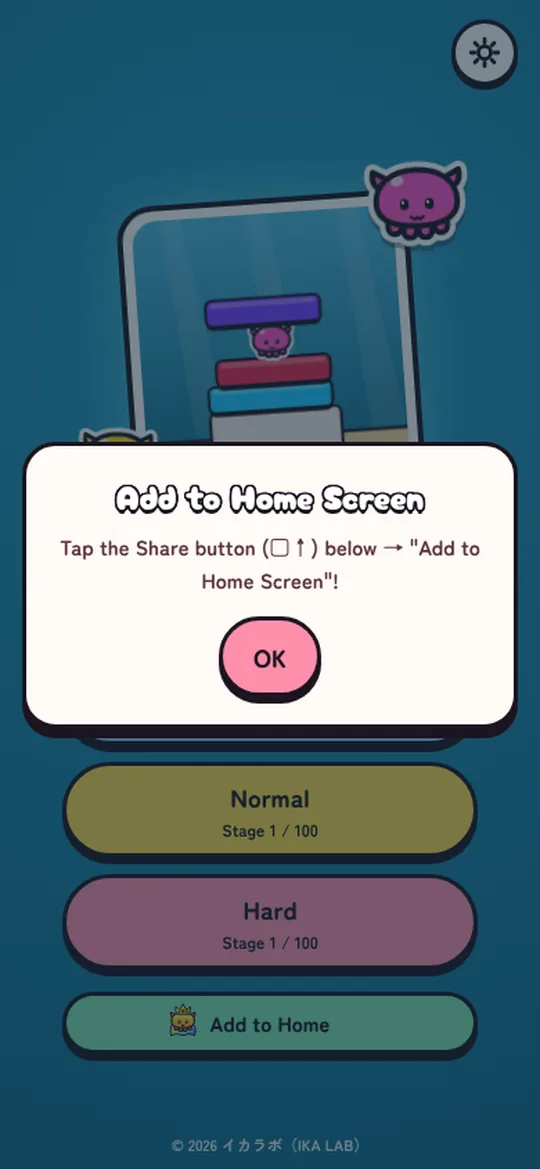
On iPhone, instead of a confirmation screen, we explain the steps. Tapping the button shows a card telling you to use the Share button at the bottom of the screen (a square with an arrow) and then “Add to Home Screen”.
When you open it from your Home Screen
When you open a game from its Home Screen icon, it's set to start full screen. With no address bar, the game can use more of the screen.
The icon's name depends on your language. If your device is set to Japanese, the game is added with its Japanese name, such as 「イカドク」. Otherwise, it's added with its English title, such as “IKADOKU”.
When the game is opened from your Home Screen, it has already been added, so we hide the add button. Also, without the browser's back button, there would be no easy way out, so the title screen has a house button in the top-left corner that takes you to the IKA LAB home page. This button appears only while the title screen is showing, not when another screen, such as the how-to-play screen, is covering it.
Even when opened from your Home Screen, it's the same page as the web version. The game is always loaded from the internet, so you need an internet connection to play, even from your Home Screen. In return, when we fix something, players on the Home Screen get the new version too.
A friendly nudge on your 2nd and 5th visits
Some people don't notice the button, even though it's there. So on your 2nd and 5th visits to the same game, we show an “Add it to your Home Screen!” card, once each time. Visits are counted separately for each game, and visits from your Home Screen aren't counted.
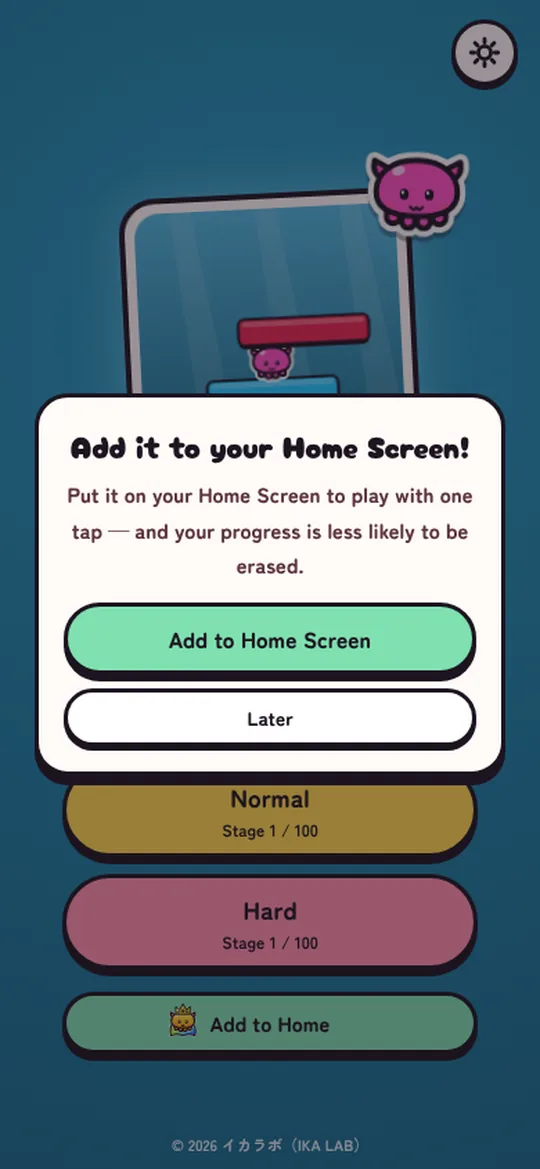
The card appears a little while after the game opens. If you've already touched the screen and started playing by then, we don't show it, because we don't want to interrupt your game. Tapping “Add to Home Screen” on the card follows the same steps as the button. You can close it by tapping “Later”. We also don't show it when you've opened the game from your Home Screen, or when we can tell the game has already been added.
And when the game is opened from your Home Screen, it asks the browser to protect its data from being cleared (navigator.storage.persist()). The browser decides whether to accept, but this way, adding the game to your Home Screen also helps keep your progress safe.
Our rules for keeping progress safe
Your progress matters to you, so we follow a few rules for how we save it.
First, saving and loading are written so that a failure doesn't cause an error. Even when saving isn't possible, such as in private mode, the game keeps running and you can still play.
Second, when an update changes what a game saves, it can still read progress saved in the older format. New items start with default values. For example, when IKA TOWER started tracking progress separately for each difficulty, earlier progress was carried over to “Easy”.
Third, once a game is released, its address (/games/<name>/) never changes. If it did, the icon on your Home Screen would no longer open the game. When IKA TRAIN moved to a new home, we didn't delete the /games/ika-train/ page. Instead, we put up a page letting players know it had moved. That page also explains that progress from the web version (medals, best times) can't be carried over.