Published:
To cut an MP3, open “MP3 Cutter,” pick your MP3, choose the parts to keep, and tap “Cut it.” The sound quality stays the same, and you can join several parts into one MP3. Below, we compare it with the usual ways and walk you through it.
Try the MP3 Cutter tool →Sound familiar?
- You want to trim the start and end of a recording. Meeting or practice recordings often have extra time before things start and after they end.
- You only need one section. For dance practice, a presentation, or background music for a video, you may want just “from here to here.”
- You want to join a few parts. Cutting and joining scattered sections one by one takes a lot of steps.
The usual ways, and what’s annoying about them
Here are the common ways people cut an MP3:
| Method | Cost | The catch |
|---|---|---|
| Audio editing software on a computer | Free to paid | You have to install it and learn it. Depending on how you save, the audio may be re-encoded and lose quality. |
| Editing apps on a phone | Free to paid | You have to install them. Some have lots of ads or need an account to save. |
| Websites that cut uploaded files | Free and up | Your audio goes to their server, and there may be limits on size or uses. |
| This tool | Free | MP3 files only, and joins switch instantly instead of fading. |
Audio editors are great if you’re producing something serious — they can change volume and layer sounds too. But when you just want to cut out one part, you’d rather not install anything.
What “MP3 Cutter” can do
- Cut without losing quality: the MP3 is cut at its tiny built-in steps (about 0.026 s), so nothing is re-encoded and the sound stays original.
- Join as many parts as you need: add up to 10 parts with “+ Add another part,” and they’re joined in order into one MP3.
- See the waveform and adjust in 0.1 s steps: red marks the parts you keep. Drag the yellow dots or use ◀ ▶ for 0.1 s steps. You can also type the times.
- Decide while listening: “▶ Play it joined” lets you hear the result first. While it plays, “Set start here” and “Set end here” mark the spot.
- Song tags are kept: title, artist and other tags (ID3) stay as they are.
- Nothing is uploaded: everything happens inside the page, so your audio never leaves your device. No sign-up, no limits on uses — always free.
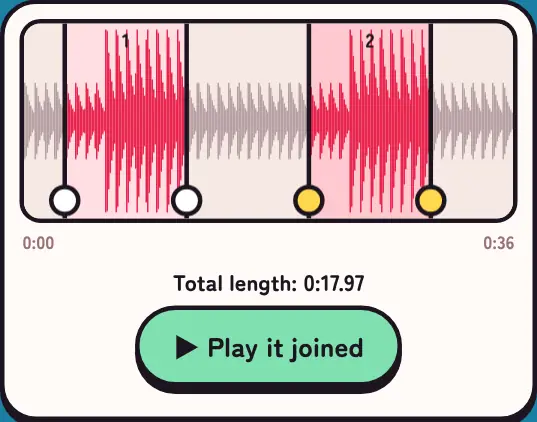
How do I cut an MP3? Step by step
- Open the page: open “MP3 Cutter” in Chrome or Edge, on a phone or a computer.
- Choose an MP3: pick one MP3. Its waveform appears.
- Pick the parts: drag the yellow dots, or use ◀ ▶ next to “Start” and “End.” To keep more sections, tap “+ Add another part.”
- Listen to check: tap “▶ Play it joined” to hear the joined audio.
- Cut and save: tap “✂ Cut it,” then “Save” on the new MP3. It’s named after the original with “_cut” added.
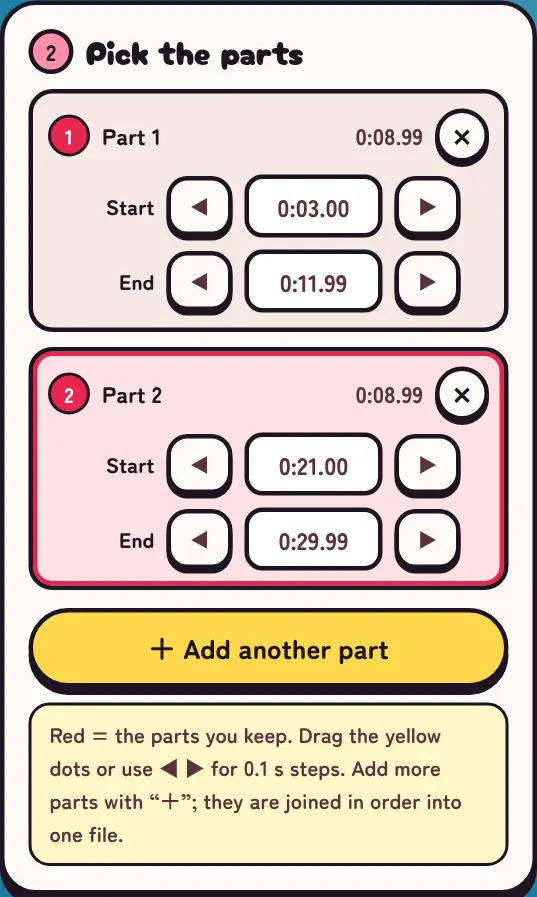
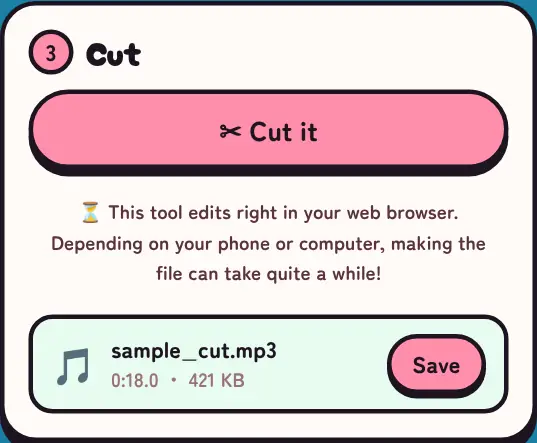
Tips and things to know
- Join at quiet spots: the sound switches instantly at each join, so joining at song breaks or quiet moments sounds most natural.
- Use ◀ ▶ for fine tuning: dragging with a finger can be a little off, so get close first, then fix it with ◀ ▶ in 0.1 s steps.
- Not an MP3? Convert first: for audio from a recorder app (like M4A), turn it into an MP3 with Any Audio to MP3 first.
To be honest: only MP3 files can be chosen. Because cuts happen at the MP3’s tiny steps, a cut may move by a tiny amount (less than one 0.026 s step) from the exact spot. There’s no fade between joined parts. And if you’re using music made by someone else, check what you’re allowed to do with it first.
Wrapping up
Cutting an MP3 doesn’t require software or an app. Pick the parts while looking at the waveform, and you get one MP3 with the original sound quality — joined from as many parts as you need.
Too quiet after cutting? Make it louder with Volume Booster. Want to join it with other audio? Try Join Audio Files.