Published:
To extract audio from a video, open “Video to MP3,” choose your video, pick a quality, and press “Convert to MP3.” You can listen to the result right there before you save it. Below, we compare it with the usual ways and walk you through it.
Try the Video to MP3 tool →Sound familiar?
- You want to hear a recital or concert as music. You filmed your kid’s piano recital or a band’s live show, and you’d like to play just the sound in a music player.
- You want to replay a class or meeting by ear. If you don’t need to watch the screen, it’s handy to extract audio from the video and listen while commuting or doing chores.
- The video is too big to send. You want to share a performance or a song, but the video file is heavy to send and store.
The usual ways, and what’s annoying about them
Here are the common ways people get the sound out of a video:
| Method | Cost | The catch |
|---|---|---|
| Export only the audio from video editing software | Free or paid | You have to install it and learn it, and finding the audio-only export setting can take a while. |
| Websites that convert uploaded files | Free or paid | Your video goes to their server, so big files take time to upload. There may be limits on size or uses. |
| Play the video and record it again on another device | Free | Room noise gets in and the sound gets worse. It takes as long as the video itself. |
| This tool | Free | You get the sound of the whole video (you can’t pick just a part), one video at a time. |
Video editors are great if you make videos often — they can cut, join, and add other sounds too. But when you just want the sound of one video, you’d rather not install anything.
What “Video to MP3” can do
- Turn a video’s sound into an MP3: take just the audio from MP4, MOV, and other videos from your phone. The video format (H.264 or HEVC) doesn’t matter — if there’s sound, it can be extracted.
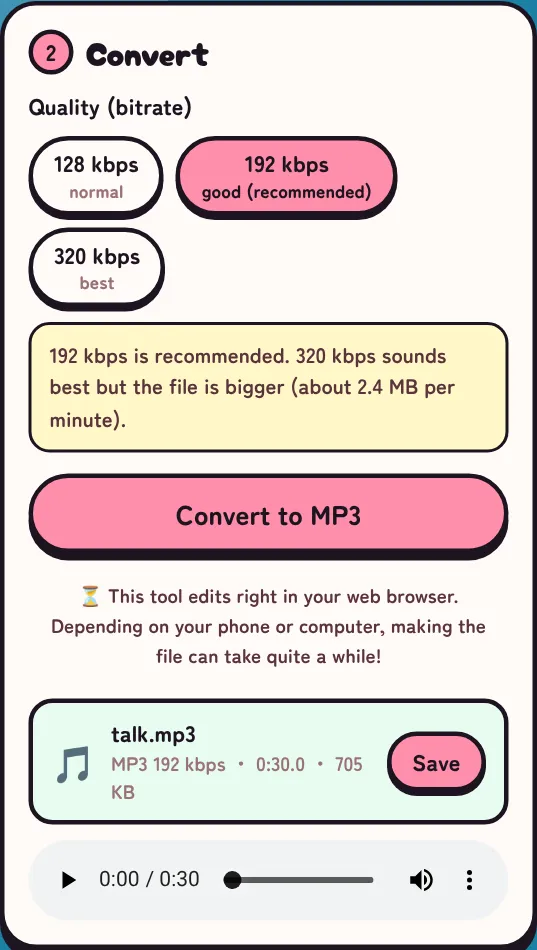
- Three quality choices: 128 kbps (normal), 192 kbps (good, recommended), or 320 kbps (best).
- Listen before saving: when it’s done, a player lets you check the sound right there. The file gets the same name as the video, ending in .mp3.
- Nothing is uploaded: everything happens inside the page, so your video never leaves your phone or computer — good for family or work videos. No account, no watermark, no limits, and always free.
How do I extract audio from a video? Step by step
- Open the page: open “Video to MP3” in Chrome or Edge, on a phone or a computer.
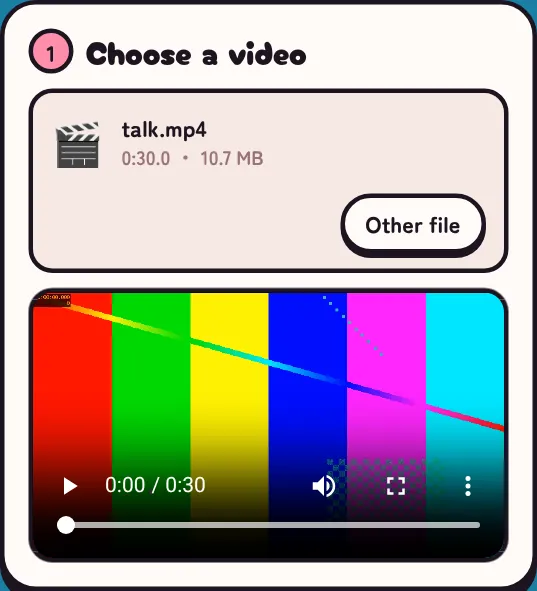
- Choose a video: under “Choose a video,” pick one video. Its length and file size appear. To switch videos, press “Other file.”
- Pick a quality: choose 128, 192, or 320 kbps. If you’re not sure, leave it at 192 kbps.
- Convert: press “Convert to MP3” and keep the screen on until it’s done.
- Listen and save: check the sound in the player below, then press “Save.”
Tips and things to know
- Pick the quality by content: for speech only, 128 kbps is often enough and makes a lighter file. For music, 192 kbps is recommended. 320 kbps sounds best but is bigger — about 2.4 MB per minute.
- Mono tops out at 160 kbps: single-channel (mono) audio is made at 160 kbps even if you choose 192 or 320 kbps. The actual kbps, length, and size appear next to the result.
- Need just one part? Cut it afterward: this tool takes the sound of the whole video. For a single song or the key moment, convert to MP3 first, then trim it with MP3 Cutter.
We tested it: in Chrome on our test computer, we converted a test MP4 we made — 30 seconds, 1280×720, H.264 + AAC (stereo), 10.7 MB — at 192 kbps. About 1.9 seconds after pressing the button, we had a 705 KB, 0:30.0 MP3. On phones and other computers, the time can be very different, and long videos or older phones may take a while.
To be honest: a video with no sound shows “This video has no sound.” and you can’t go on. Some videos in a special (fragmented) format can’t be read yet. It can’t grab videos from the internet — only files on your own device. And it can’t make the sound better than the original recording. If you use someone else’s work, check that you’re allowed to first.
Wrapping up
To extract audio from a video, you don’t need to install software or upload your video anywhere. Choose the video, press the button, listen, and save it as an MP3.
Want to put a picture on the audio and make it a video again? Try Audio to Video.