Published:
To make a PDF smaller, open “Compress PDF,” pick your files, choose a level, and tap one button. PDFs with lots of photos or scans shrink the most. It works on your phone or computer, and your PDFs are never uploaded. Below, we compare it with the usual ways and walk you through it.
Try the Compress PDF tool →Sound familiar?
- It’s too big to email. You turned scanned papers or a photo-heavy handout into a PDF, and now your email says the attachment is too large.
- The upload form has a size limit. Application and sign-up forms often cap file size. Go over it and your file is rejected — and redoing it eats up your time.
- You don’t want to spend money or effort. You’d love to compress a PDF for free, but buying software or uploading private documents to a site you don’t know doesn’t feel right.
The usual ways, and what’s annoying about them
Here are the common ways people make PDFs smaller:
| Method | Cost | The catch |
|---|---|---|
| Paid PDF editing software | Often paid | You have to install it or sign up, even if you only need it once in a while. |
| Websites that compress uploaded files | Free or paid | Your files go to their server. Free plans may limit file size or uses per day. |
| Scan again or rebuild at lower quality | Time and effort | You start over with new settings, which is slow — and you need the original paper or file. |
| This tool | Free | With “Strong” and “Normal,” text can’t be copied or searched. Text-only PDFs barely shrink. |
Paid software does a lot more, like editing, so it’s great if you work with PDFs every day. But when you just need this one PDF smaller today, you probably don’t want to install anything or pay for it.
What “Compress PDF” can do
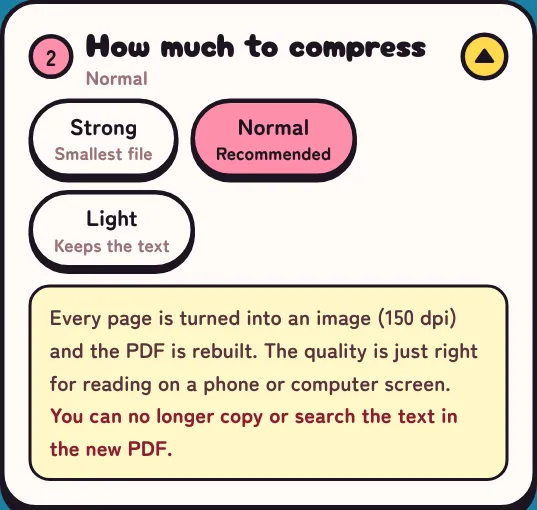
- Three strength levels: “Strong” (smallest file) rebuilds every page as a 100 dpi image. “Normal” (recommended) uses 150 dpi images — just right for reading on a phone or computer screen. “Light” (keeps the text) leaves text, links and bookmarks as they are and only re-saves the photos (JPEG) inside, up to 2000 pixels on the long side.
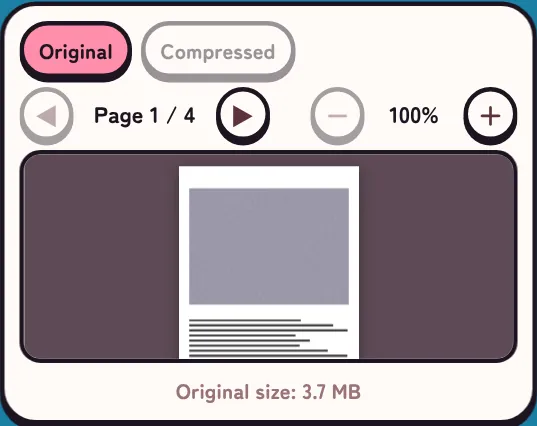
- Compare before you save: switch between “Original” and “Compressed,” flip pages with ◀ ▶, and zoom in with + to check the text is still readable. You also see how many percent smaller it got.
- As many PDFs as you like: they’re compressed one by one. Save each one, or use “Save all” (no ZIP). File names get “_compressed” added.
- Keeps the original if it doesn’t shrink: if a PDF doesn’t get smaller, you’ll see “already small, so the original is kept,” and the original file is left as it is.
- Nothing is uploaded: everything happens inside the page, so your PDFs never leave your device (only the PDF reader part is loaded from the IKA LAB site when you add a PDF). Always free, no watermark, no limits on uses or files.
How do I compress a PDF? Step by step
- Open the page: open “Compress PDF” in Chrome or Edge, on a phone or a computer.
- Choose your PDFs: tap “Choose PDFs (as many as you like).” Need more? Use “+ Add more.”
- Pick a level: under “How much to compress,” choose “Strong,” “Normal,” or “Light.” Not sure? Go with “Normal.”
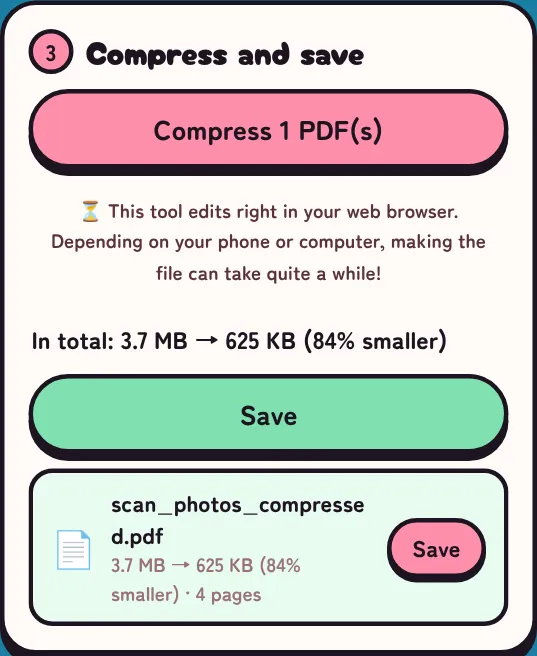
- Compress: tap the “Compress … PDF(s)” button.
- Compare: in the preview, switch between “Original” and “Compressed” to make sure it still reads well.
- Save: tap “Save” or “Save all.” Files are named after the original, with “_compressed” added.
Tips and things to know
- Start with “Normal”: for reading on screen, it’s usually all you need. If it still won’t fit an email or form, try “Strong.” Small text gets a little blurry, so zoom in on the preview to check.
- Need to copy or search text? Use “Light”: text, links and bookmarks stay. Just know that PDFs with few photos barely get smaller.
- Use a computer for PDFs with many pages: on a phone it can take a long time or stop partway. Use a computer, or split the file first with Delete, split & organize PDF pages.
We measured it: in Chrome on our test computer, a 3.7 MB, 4-page A4 PDF with photos (a scan-style file we made for testing) came out at 625 KB with “Normal” — 84% smaller. How long it takes depends on your device.
To be honest: “Strong” and “Normal” turn every page into an image, so copying and searching text, links, bookmarks and form fields stop working (everything still shows as part of the picture). Text-only PDFs are already light, so they barely shrink. PDFs that need a password to open can’t be used — if you know the password, remove it first with Remove PDF password. Also, the new PDF loses restrictions like no printing or no copying (your original file doesn’t change).
Wrapping up
When you need to compress a PDF for free, you don’t have to buy software or upload your documents anywhere. Pick your PDFs, choose a level, tap — and compare with the original before you save.
Too many pages? Keep only the ones you need with Delete, split & organize PDF pages first. Password-protected? Remove it with Remove PDF password, then come back.