Published:
To turn a MOV video into an MP4, open “MOV to MP4,” choose your video, and tap “Convert to MP4.” Usually it keeps the contents exactly as they are and only swaps the container to MP4, so quality doesn’t change and it’s done in a flash. Below, we compare it with the usual ways and walk you through it.
Try the MOV to MP4 tool →Sound familiar?
- It won’t open on your computer. You copy a video shot on an iPhone to your computer, and the MOV file won’t play or won’t load into your editing app.
- The site says “MP4 only.” An upload form or a place you post to only takes MP4, so you end up searching how to convert MOV to MP4.
- Converting is slow or blurry. You’ve waited minutes for a conversion, only to find the picture got a little rougher.
The usual ways, and what’s annoying about them
Here are the common ways people turn MOV into MP4:
| Method | Cost | The catch |
|---|---|---|
| Install a converter app or program | Free or paid | Takes time to install. Lots of settings, so it’s easy to get stuck on which to pick. |
| Websites that convert uploaded files | Free or paid | Your video goes to their server, so you wait for the upload and download. There may be limits on size or uses. |
| Export again from video editing software | Free or paid | It re-makes the video, so it’s slow and the quality changes a bit. You also have to learn the software. |
| This tool | Free | One video at a time. Needs Chrome or Edge. “Re-make as H.264” isn’t available in browsers that can’t read HEVC. |
Editing software is handy if you make videos a lot, since it can also cut and add text. But when you just need this one video as an MP4, you’d rather not install anything.
What “MOV to MP4” can do
- MP4 in an instant, same quality: the video and sound inside stay as they are, and only the container changes (MOV → MP4). Nothing is re-made, so quality doesn’t change.
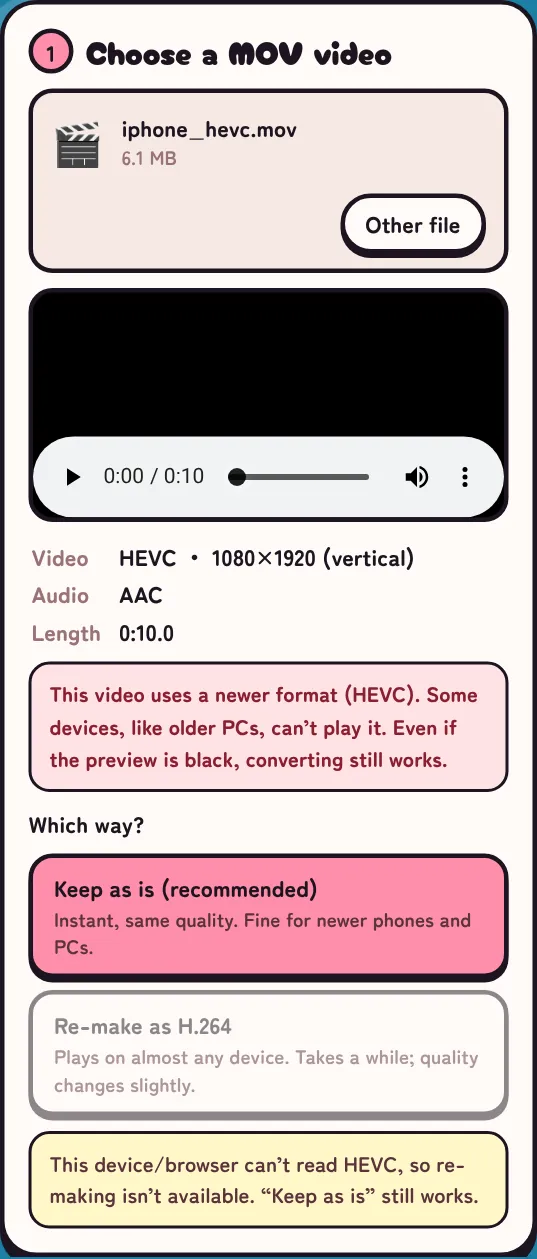
- See what’s inside right away: once you choose a video, it shows the video format, the size (portrait or landscape), the audio format and the length.
- A choice for HEVC videos: only when the video is HEVC (the space-saving format recent iPhones use), “Which way?” appears. Pick “Keep as is (recommended)” or “Re-make as H.264,” which plays on almost any device.
- Vertical videos stay vertical: the rotation info is kept. The sound is kept as is too when it can be, and only re-made when it’s in a format that can’t go straight in.
- MP4 and M4V work too: besides MOV, you can choose .mp4 and .m4v files and re-save them cleanly.
- Nothing is uploaded: everything happens inside the page, so your video never leaves your phone or computer. No sign-up, no watermark, no limits on uses — always free.
How do I convert MOV to MP4? Step by step
- Open the page: open “MOV to MP4” in Chrome or Edge, on a phone or a computer.
- Choose a video: tap “Choose a video” and pick the MOV you want as an MP4. The video, audio and length appear.
- If it’s HEVC, pick a way: when “Which way?” shows up, “Keep as is (recommended)” is fine most of the time. For older devices, choose “Re-make as H.264.”
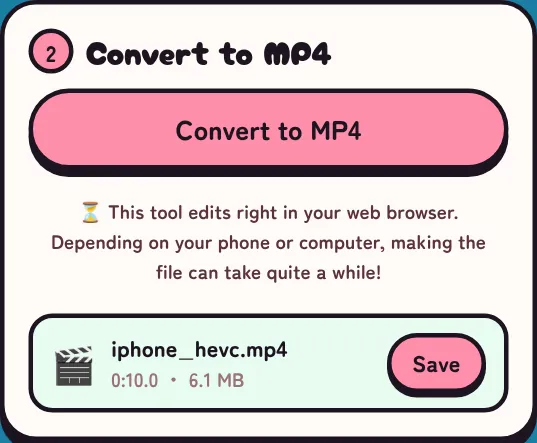
- Convert: tap “Convert to MP4.”
- Save: when the name, length and file size appear, tap “Save.” It’s named “name.mp4” (or “name_H264.mp4” if re-made).
Tips and things to know
- Start with “Keep as is”: quality stays the same and it’s done instantly. Only try “Re-make as H.264” if the MP4 won’t play on the device you need.
- A black preview is OK: in browsers that can’t read HEVC, the preview of your video may stay black. “Keep as is” still works.
- Give re-making some time: “Re-make as H.264” rebuilds the picture frame by frame, so longer videos take longer and quality changes slightly. The wait depends a lot on your phone or computer.
We tested it: in Chrome on our test computer, a 10-second, 1080×1920 (portrait), HEVC + AAC, 6.1 MB MOV converted with “Keep as is” became a 6.1 MB MP4 in under a second after tapping the button. On phones and other computers, the time can be different.
To be honest: you can only convert one video at a time. Also, the Chrome on our test computer couldn’t read HEVC, so “Re-make as H.264” wasn’t available and the preview stayed black (the conversion itself worked). Whether re-making is available depends on your phone and browser, and the page tells you when it isn’t.
Wrapping up
To convert MOV to MP4, you don’t need to install an app or send your video anywhere. Choose it, tap the button, and you get an MP4 at the same quality right away.
Is the video too big to send? Try Compress Video to a Size. Want to trim parts you don’t need? Use Video Cutter.