Published:
To merge PDFs for free, open “Merge PDF,” pick your files, set the order, and tap one button. It works on your phone or computer, and your files are never uploaded. Below, we compare it with the usual ways and walk you through it.
Try the Merge PDF tool →Sound familiar?
- “Please send it as a single PDF.” Applications and forms often ask for your ID, documents, and receipts in one file. Sending a pile of separate PDFs is a pain for the person on the other end too.
- The form only takes one file. If an upload box accepts just one attachment, you can’t send several PDFs as they are.
- You don’t want to upload private documents. Contracts and papers with your address aren’t something you want to hand to a random server.
The usual ways, and what’s annoying about them
Here are the common ways people combine PDFs:
| Method | Cost | The catch |
|---|---|---|
| Paid PDF editing software | Often paid | You have to install it or sign up, even if you only need it once in a while. |
| Websites that merge uploaded files | Free and up | Your files go to their server. Free plans may limit file size or uses per day. |
| Print everything and scan it again | Paper and ink | Slow, and the text gets blurry and can’t be searched or copied anymore. |
| This tool | Free | Bookmarks aren’t kept. PDFs that need a password to open can’t go in as they are. |
Paid software is great if you work with PDFs every day — it can also edit and rearrange pages. But when you just need to stick a few PDFs together today, you probably don’t want to install anything or pay for it.
What “Merge PDF” can do
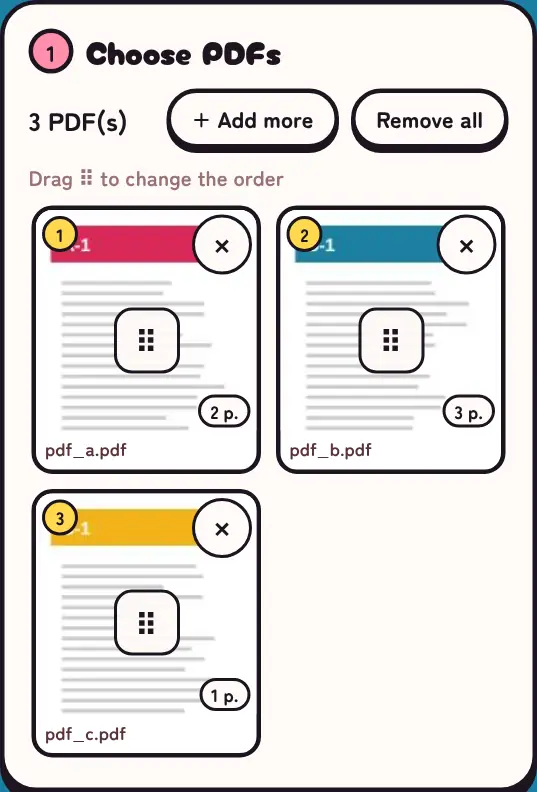
- Combine several PDFs into one: pick two or more and they become a single PDF. You can add more later with “+ Add more.”
- Reorder with your finger: drag the ⠿ handle to change the order. Each file shows its page count, so you know the total before you merge.
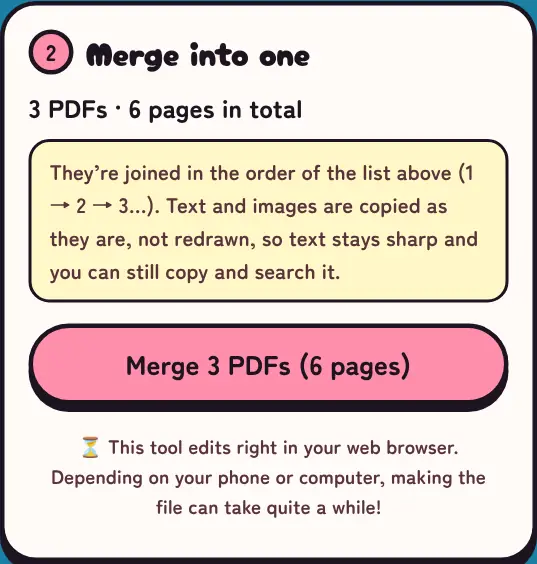
- Text stays sharp: text and images are copied as they are, not redrawn. You can still copy and search the text just like in the originals.
- Links inside pages still work: links to websites and links to other pages in the same PDF are kept.
- Nothing is uploaded: everything happens inside the page, so your documents never leave your device. No sign-up, no watermark, no limits on uses — always free.
How do I merge PDFs? Step by step
- Open the page: open “Merge PDF” in Chrome or Edge, on a phone or a computer.
- Choose your PDFs: pick at least two. Need more? Use “+ Add more.”
- Set the order: drag the ⠿ handles so the file you want first is at the top.
- Merge: tap the “Merge … PDFs” button.
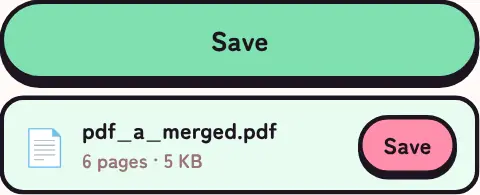
- Save: tap “Save” under the result. The file is named after your first PDF, with “_merged” added.
Tips and things to know
- Put the right file first: the merged file takes its name from the first PDF. If that one already has the name you want to send, you won’t need to rename anything.
- Check the size after merging: a merged PDF is bigger. If it’s too big to email, shrink it with Compress PDF before sending.
- Use a computer for huge files: all the PDFs are read on your device, so if they add up to hundreds of MB, a phone may stop partway. Use a computer, or merge in a few rounds.
To be honest: bookmarks (the outline) and accessibility tags aren’t carried over. Fillable forms keep their look but may stop being fillable. PDFs that need a password to open can’t be merged — if you know the password, remove it first with Remove PDF password. PDFs that only restrict printing or editing work fine, but the merged file won’t keep those restrictions.
Wrapping up
When someone asks for “one PDF,” you don’t need to install software or upload private documents to a site you don’t know. Pick, arrange, tap — and the text stays crisp.
Want to add paper documents or photos? Turn them into a PDF first with Image to PDF. Only need part of the result? Split it with Delete, split & organize PDF pages.