Published:
To convert a PDF to JPG, open “PDF to JPG,” pick your PDF, choose the resolution, and tap the button. Each page becomes its own JPG, on your phone or computer. Below, we compare it with the usual ways and walk you through it.
Try the PDF to JPG tool →Sound familiar?
- A PDF is awkward to post or send. When a notice or flyer arrives as a PDF but you want to post it on social media, drop it in a chat, or put it in slides, a JPG is often easier to use.
- Some places only take images. An upload box may say “JPG or PNG only,” so your PDF won’t go through.
- Screenshots come out small and blurry. Capturing the screen and cropping takes time, and small text gets fuzzy.
The usual ways, and what’s annoying about them
Here are the common ways people turn a PDF into images:
| Method | Cost | The catch |
|---|---|---|
| Take screenshots and crop them | Free | You zoom, capture, and crop every page. It’s limited to your screen size, so small text gets blurry. |
| Export from paid PDF software | Often paid | Clean results, but you have to install it or sign up even if you rarely need it. |
| Websites that convert uploaded files | Free and up | Your PDF goes to their server, and there may be limits on pages or uses. |
| This tool | Free | Once it’s an image, you can’t copy or search the text. |
Paid software is handy if you work with PDFs a lot, since it does other edits too. But when you just need this PDF as images right now, you’d rather not install anything.
What “PDF to JPG” can do
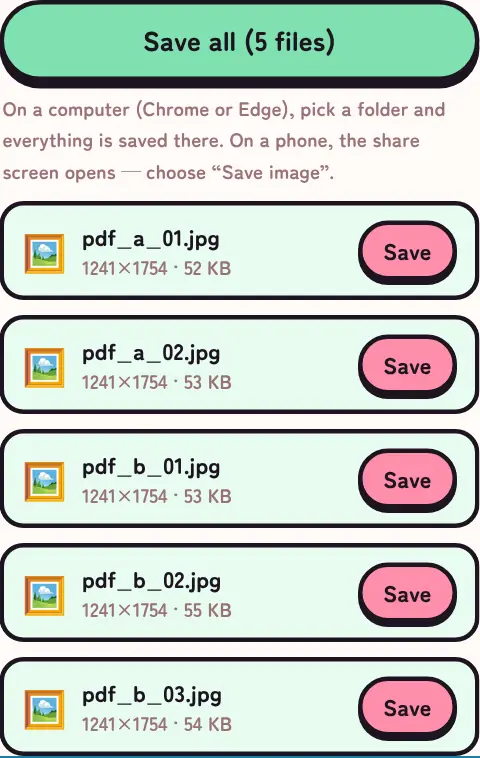
- One JPG per page: a 10-page PDF gives you 10 images, named “name_01.jpg”, “name_02.jpg”… with the page number (a 1-page PDF gives “name.jpg”).
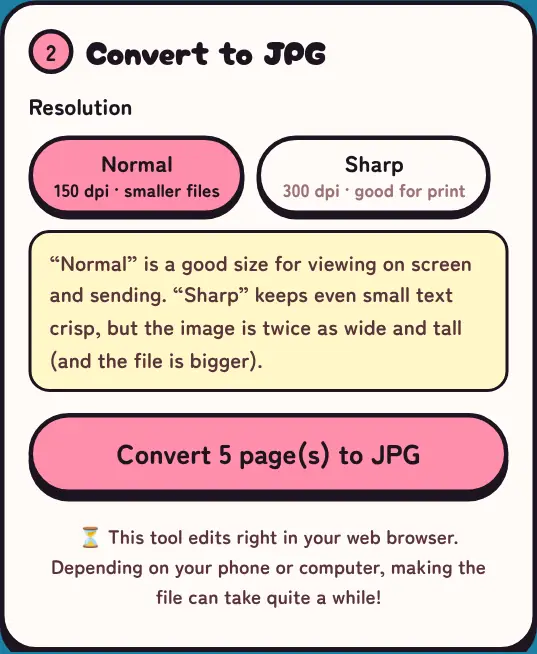
- Two resolutions to choose from: “Normal” (150 dpi) is a good size for viewing and sending; “Sharp” (300 dpi) keeps small text crisp and works for printing. For an A4 page, Normal is about 1240×1754 pixels and Sharp about 2480×3508.
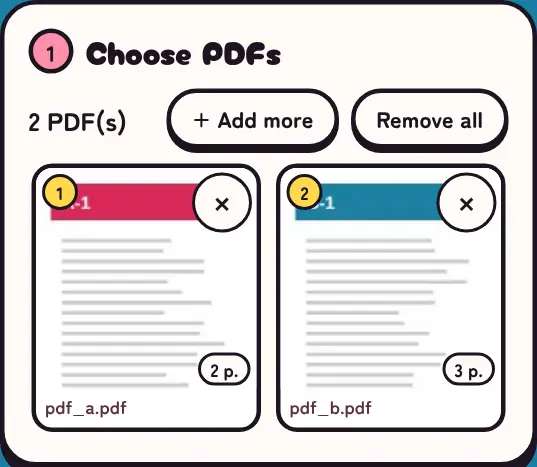
- As many PDFs as you like: pick several and every page of every PDF is converted. Save images one by one or all at once.
- Password-protected PDFs work: if you know the password, you’ll enter it while converting. The password isn’t sent anywhere either.
- Nothing is uploaded: everything happens inside the page, so your PDFs never leave your device. No sign-up, no watermark, no limits on uses — always free.
How do I convert a PDF to JPG? Step by step
- Open the page: open “PDF to JPG” in Chrome or Edge, on a phone or a computer.
- Choose your PDFs: pick the PDF you want as images — as many as you like.
- Pick a resolution: use “Normal” most of the time, or “Sharp” for printing or tiny text.
- Convert: tap the “Convert … page(s) to JPG” button.
- Save: tap “Save” for each image, or “Save all” for everything.
Tips and things to know
- “Normal” is enough for sending: “Sharp” doubles the width and height and makes bigger files. If you’re only sending or viewing on screen, go with Normal.
- Too big to send? Shrink it: if the place you’re sending to has a size limit, use Compress Images to a Size after converting to get under it.
- Transparent areas turn white: JPG can’t be see-through, so pages without a background come out on white.
To be honest: each page is redrawn as a picture, so you can’t copy or search the text in the images, and links stop working. If a PDF doesn’t include its fonts, similar fonts on your device are used, so the text may look a little different. For very large pages (like PDFs made from photos), the image may be made slightly smaller to fit what your phone can handle — the result will tell you when that happens.
Wrapping up
Converting a PDF to JPG doesn’t mean cropping screenshots page by page or installing software. Pick it, tap the button, and every page becomes a clean image.
Going the other way? Combine images into a PDF with Image to PDF. Only need some pages? Use Delete, split & organize PDF pages first.