Published:
To resize an image, open “Resize Images,” pick your images, type a width, and tap the button. You can bring as many images as you like to the same width at once, on your phone or computer. Below, we compare it with the usual ways and walk you through it.
Try the Resize Images tool →Sound familiar?
- You were told to use a specific pixel size. Application forms, online shops and blogs often ask for “1080 px wide” or “no larger than 1000×1000 px.”
- Phone photos are huge. Many phones take photos like 4032×3024, which are heavy and slow to load if you use them as they are.
- Making many images match is a chore. Opening product photos or blog images one by one in an app to make them the same size takes a lot of time.
The usual ways, and what’s annoying about them
Here are the common ways people resize images:
| Method | Cost | The catch |
|---|---|---|
| The image app that came with your computer, one at a time | Free | Open each image, type the numbers, save. Often not possible on a phone. |
| Install an image editing app or program | Free to paid | Takes time to install. Some have lots of ads or need an account to save. |
| Websites that resize uploaded files | Free or paid | Your photos go to their server, and there may be limits on images or uses. |
| This tool | Free | It doesn’t crop. Making an image bigger won’t make it sharper. |
Image editors are handy if you make images a lot, since they can also change colors or add text. But when you just need this photo at a set size, you’d rather not install anything.
What “Resize Images” can do
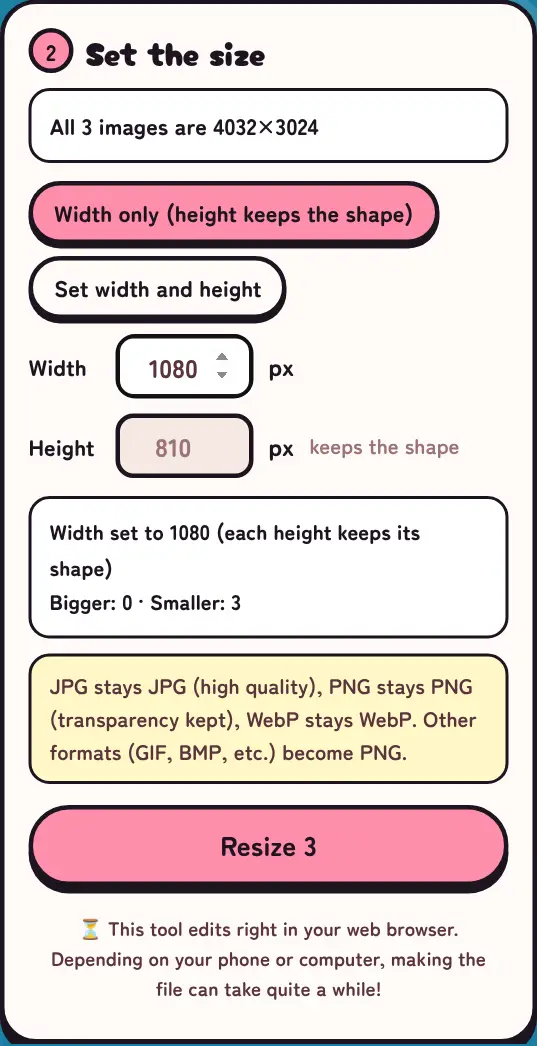
- Set the width, and the height follows: with “Width only (height keeps the shape),” each height is worked out from the image’s own shape, so nothing gets stretched.
- Or set an exact width and height: “Set width and height” makes every image exactly that size. Images with a different shape will be stretched or squeezed, and the page warns you (nothing is cut off).
- As many as you like: there’s no limit on the number of images. You’ll see each image’s current size, and before you tap the button you can check the plan, like “4032×3024 → 1080×810.”
- Same format out: JPG stays a high-quality JPG, PNG stays PNG with transparency, and WebP stays WebP (GIF, BMP and others become PNG).
- Nothing is uploaded: everything happens inside the page, so your images never leave your device. No sign-up, no watermark, no limits on uses — always free.
How do I resize an image? Step by step
- Open the page: open “Resize Images” in Chrome or Edge, on a phone or a computer.
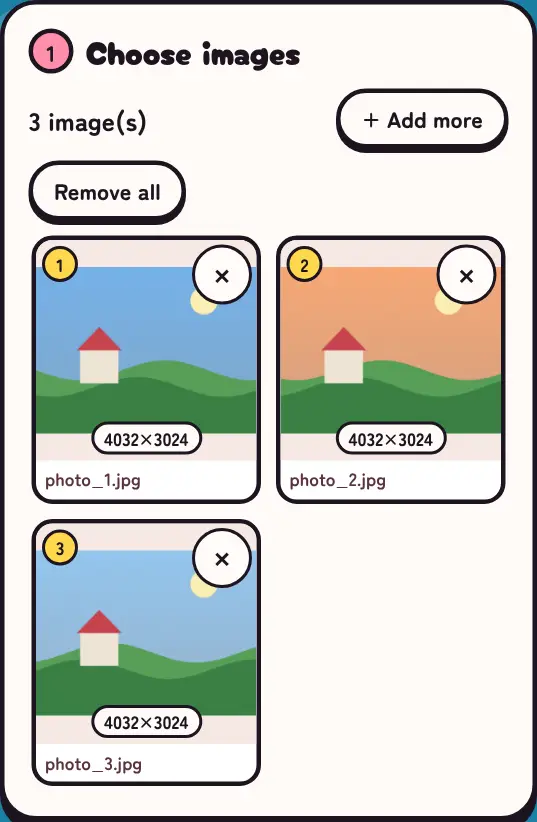
- Choose your images: pick the images to resize — as many as you like. Each one shows its current size on its picture.
- Set the size: usually leave it on “Width only (height keeps the shape)” and type the width (1 to 20000).
- Resize: tap the “Resize …” button.
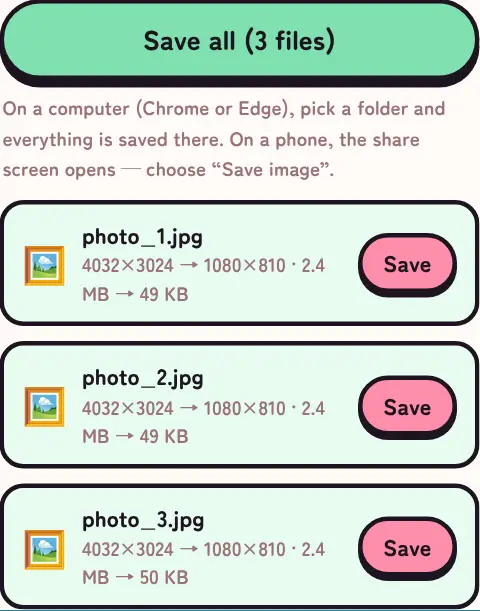
- Save: tap “Save” for each image, or “Save all” for everything. In Chrome or Edge on a computer, choose a folder and they all go in; on a phone, save from the share screen.
Tips and things to know
- When in doubt, use “Width only”: the shape never gets distorted, so it’s the safest choice. If you’re told “no larger than … px” and your photo is landscape, set the width to that number and the height will come out smaller.
- Want a square? Crop first: setting 1080×1080 with “Set width and height” squeezes a landscape photo. To change the shape, crop it with Crop Images first, then use this tool to match the size.
- Told “under … MB”? Fewer pixels also means a lighter file, but if you need to hit a file size, Compress Images to a Size is the better fit.
- Bigger isn’t sharper: the pixel count goes up, but detail that isn’t in the original can’t be created, so it looks blurrier. Only enlarge when you must submit a specific size.
We tested it: in Chrome on our test computer, three 4032×3024 photos set to “Width 1080” all came out at 1080×810, in under a second after tapping the button. On phones and other computers, the time can be very different.
To be honest: animated images (like GIFs) keep only the first frame. Phones have a limit on how big an image can be made, so a very large size may come out a little smaller (you’ll be told on screen).
Wrapping up
Resizing an image doesn’t mean installing software or opening files one by one. Type a width, tap the button, and any number of images line up at the same width.
Can’t open your iPhone photos? Turn them into JPGs with HEIC to JPG first. Want to put your resized images into one file? Try Image to PDF.